Open
Conversation


Collaborator
|
|

Contributor
Author
|
@meval1006 this is ready for review! |

meval1006
approved these changes
Mar 11, 2026

| desired access level. | ||
| members. To grant additional *Phone* app permissions to a user, go to :menuselection:`Settings app | ||
| --> Users \& Companies --> Users` and search for the user. Open the user's contact card and navigate | ||
| to the *Access Rights* tab. Go to the *Productivity* section, and in the |VOIP| field select the |
Contributor
There was a problem hiding this comment.
Suggested change
| to the *Access Rights* tab. Go to the *Productivity* section, and in the |VOIP| field select the | |
| to the *Access Rights* tab. Go to the *Productivity* section, and in the |VOIP| field, select the |
suggestion
|
|
||
| Other providers must meet two requirements to connect with Odoo: | ||
|
|
||
| #. The |VOIP| host must provide access to a SIP server via a websocket connection. |
Contributor
There was a problem hiding this comment.
Suggested change
| #. The |VOIP| host must provide access to a SIP server via a websocket connection. | |
| #. The |VOIP| host must provide access to a SIP server via a WebSocket connection. |
Not sure if this requires capitalization.
| provider is compatible with the **Phone** app. | ||
|
|
||
| To add credentials for an alternate provider, go to the :menuselection:`Phone app --> Configuration | ||
| --> Settings`. Click :guilabel:`New` and enter the provider information (like the websocket's URL). |
Contributor
There was a problem hiding this comment.
Suggested change
| --> Settings`. Click :guilabel:`New`, then enter the provider information (such as the websocket's URL). |
suggestion
Comment on lines
130
to
131
| steps <voip/voip_widget/troubleshooting_voip>`. For any other issues with the |VOIP| service | ||
| provider, reach out directly to their support team. |
Contributor
There was a problem hiding this comment.
Suggested change
| steps <voip/voip_widget/troubleshooting_voip>`. For any other issues with the |VOIP| service | |
| provider, contact their support team directly. |
suggestion
Comment on lines
55
to
57
| screen. When this icon is clicked, a **Phone** pop-up widget appears on the screen. This is where | ||
| users can make and receive calls, send emails, edit user and employee info, and manage activities. | ||
| The pop-up widget stays open when navigating other Odoo apps. |
Contributor
There was a problem hiding this comment.
Suggested change
| screen. Clicking it opens a widget, where users can make and receive calls, send emails, edit user and employee info, and manage activities. The widget stays open when navigating other Odoo apps. |
suggestion
Comment on lines
122
to
123
| However, Odoo recommends using a verified provider, and cannot guarantee that every alternate | ||
| provider is compatible with the **Phone** app. |
Contributor
There was a problem hiding this comment.
Suggested change
| However, Odoo recommends using a verified provider and cannot guarantee compatibility with every alternate provider. |
suggestion
| Users \& Companies --> Users` and search for the user. Open the user's contact card and navigate to | ||
| the *Access Rights* tab. Go to the *Productivity* section, and in the |VOIP| field select the | ||
| desired access level. | ||
| members. To grant additional *Phone* app permissions to a user, go to :menuselection:`Settings app |
Contributor
There was a problem hiding this comment.
Suggested change
| members. To grant additional *Phone* app permissions to a user, go to :menuselection:`Settings app | |
| members. To grant additional **Phone** app permissions to a user, go to :menuselection:`Settings app |
Was this supposed to be bold or did you mean it to be italic?
This file contains hidden or bidirectional Unicode text that may be interpreted or compiled differently than what appears below. To review, open the file in an editor that reveals hidden Unicode characters.
Learn more about bidirectional Unicode characters
Sign up for free
to join this conversation on GitHub.
Already have an account?
Sign in to comment
3 participants


Add this suggestion to a batch that can be applied as a single commit.This suggestion is invalid because no changes were made to the code.Suggestions cannot be applied while the pull request is closed.Suggestions cannot be applied while viewing a subset of changes.Only one suggestion per line can be applied in a batch.Add this suggestion to a batch that can be applied as a single commit.Applying suggestions on deleted lines is not supported.You must change the existing code in this line in order to create a valid suggestion.Outdated suggestions cannot be applied.This suggestion has been applied or marked resolved.Suggestions cannot be applied from pending reviews.Suggestions cannot be applied on multi-line comments.Suggestions cannot be applied while the pull request is queued to merge.Suggestion cannot be applied right now. Please check back later.
documentation task card: https://www.odoo.com/odoo/project.task/6024854
key change @ lines 93–113, 157–159:
other changes:
note:
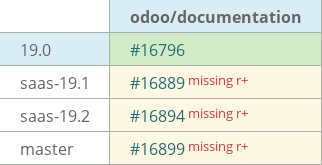
This 19.0 PR can be FWP up to master.