DxCommandTerminal builds on the original Command Terminal project. The initial development of this fork was entirely human-authored, involving months of code study, refactoring, testing, and refinement. Recent development is LLM-assisted, including generated code. I, wallstop, heavily review user-facing code changes and will continue to do so, but those changes should no longer be understood as entirely human-authored. This approach makes continued development practical within the time I can commit and allows faster iteration.
This project is MIT licensed and will remain so. There are no plans for paid features, subscriptions, or mechanisms for charging users. This disclosure is provided so you can decide whether the project fits your preferences.
This is a fork of Command Terminal for Unity, mainly to address usability gaps and add maintenance
| Platform | Compatible |
|---|---|
| Unity 2021 | Likely, but untested |
| Unity 2022 | ✓ |
| Unity 2023 | ✓ |
| Unity 6 | ✓ |
| URP | ✓ |
| HDRP | ✓ |
| .NET Standard 2.0 API level | ✓ |
| .NET Framework 4.x API level | ✓ |
The package ships no precompiled assemblies and uses only APIs available to both API
compatibility levels; the full test suite passes with the project set to either
.NET Standard 2.0 or .NET Framework in Player Settings (verified on Unity
6000.4.6f1).
Check out the latest Releases to grab the Unity Package and import to your project.
- Open Unity Package Manager
- (Optional) Enable Pre-release packages to get the latest, cutting-edge builds
- Open the Advanced Package Settings
- Add an entry for a new "Scoped Registry"
- Name:
NPM - URL:
https://registry.npmjs.org - Scope(s):
com.wallstop-studios.dxcommandterminal
- Name:
- Resolve the latest
com.wallstop-studios.dxcommandterminal
Grab a copy of this repo (either git clone or download a zip of the source) and copy the contents to your project's Assets folder.
- Enhanced Auto-Complete + Hint system + styling
- Fixed Input handling bugs related to WebGL
- Fully integrated with Unity's new Input System
- Fully configurable and bindable controls for every action
- Add ability to ignore commands that have been annotated with
RegisterCommandAttribute. In this way, your terminals can ignore any built-in commands, for cleanliness. A custom editor has been added to provide users with the ability to identify what commands are available to ignore, and selectively ignore them. - Add ability to ignore certain (or all) log levels, such that unwanted logs do not clutter terminal output
- Add ability to optionally have Unity log messages routed to the terminal, default on, but can be turned off
- Add ability to optionally ignore all default commands, such that you can write your own commands that conflict with the default provided ones, such as
HELP,TIME, etc - CommandArg value parsing has been overhauled. Instead of specific properties like
FloatandIntthat always return a value, regardless of if parsing succeeded or not, a singularbool TryGet<T>(out T parsed)method is supplied. This method provides robust parsing for all common types and has the ability to take in user-specified custom parsers for any fancy logic. See Custom Parsing for details. - CommandArgs can now have arguments with spaces passed to them, similar to how real terminals work. Any string values surrounded by single or double quotes will be interpreted as a single input (including spaces within those quotes). Single quotes must match single quotes and double quotes must match double quotes. If there is an unmatched (hanging) quote, the entire rest of the input will be interpreted as the command argument value.
- Dynamic console resizing when Screen Size change is detected, implemented in a very performant fashion
- Added Assembly Definitions, so that this project can be used cleanly in projects that utilize Assembly Definitions
- Fixed a bug where commands annotated with
RegisterCommandAttributein other assemblies failed to be recognized. User assemblies have higher precedence. - Fixed a bug where only the latest error message was preserved - errors are now queued
- Fixed a bug where attempting to access static
Terminalproperties would throw if the Terminal had been enabled yet. - Fixed a bug where moving through command history did not update the cursor position
- Fixed a bug where enabling and disabling the Terminal would break AutoComplete
- Fixed a bug where you could interact with the terminal when it was in closed state
- Fixed a bug where commands run programmatically were not added to history
- Fixed a bug where terminal line height was not being calculated correctly
- Fixed a bug where input caret width was not being calculated correctly. Previously, long caret strings would be rendered improperly
- Fixed a bug related to input swallowing
- Fixed a bug where transitioning from full to small terminal would instead, close the terminal
- Added ability to skip same commands when navigating through history
- Unified behavior around navigating up and down through command history. Previously, navigating up as far as possible would "stick" to the up-most command, while navigating down as far as possible would result in a "blank" command. Now, walking past either end of up/down results in a blank command.
- History is now filterable by execution success (command existence) as well as error status of the command
- Minor performance benefits if there are terminals in multiple scenes
- Minor performance benefits (O(n) -> O(1)) when the terminal buffer becomes full
- Minor performance benefits around multiple-indexing into dictionary issues
- Minor performance benefits around using string interpolation and intelligent checking of parameters to only force
string.Formatwhen relevant in logging paths - Better invalid command identification and error messages
- All string comparisons are now
OrdinalIgnoreCaseinstead of relying on CurrentCulture Terminalhas been made to be Editor-Change-Aware. If the Editor is in Play mode, changes to the current terminal properties will take effect immediately. This functionality has a minor performance hit and can be disabled via un-checkingTrack Changes In Editorunder theSystemheader.- Extra input validation has been added on all public methods, such that user code is sanitized where appropriate, or rejected if invalid.
- The concept of "FrontCommands" has been exterminated
- All code is formatted via Csharpier
- All variables are now consistently named
- Access modifiers have been explicitly applied to every field
- All warnings have been gotten rid of
- Collections / properties are now exposed as immutable by default. Mutable fields / properties are only exposed as necessary
- Conversion to capitalization/lowercase is now only done where absolutely required
- Annotated all logging methods with Jetbrain's
StringFormatMethodattribute to aid in intellisense and help identify formatting issues - All classes / structs have been made sealed / readonly where possible to promote immutability
- Validation around command ignoring and log level ignoring has been added to Terminal, to prevent invalid data
More improvements coming soon, stick around :)
Planned improvements:
- More and better documentation
- Wikification
- Command Groups
- Ensure working in Mobile builds
- Smarter auto complete
- Ensure HTML color coding works
- More parsing (Bounds, Matrix4x4, Plane, Ray, BoundsInt, Pose, LayerMask, Color32)
- More documentation
A simple and highly performant in-game drop down Console.

Command Terminal is based on an implementation by Jonathan Blow done in the Jai programming language.
Copy the contents from CommandTerminal to your Assets folder. Attach a Terminal Component to a game object. The console window can be toggled with a hotkey (default is backtick), and another hotkey can be used to toggle the full size window (default is shift+backtick).
Enter help in the console to view all available commands, use the up and down arrow keys to traverse the command history, and the tab key to autocomplete commands.
Add a CommandPaletteUI component next to a UIDocument to get a launcher-style command bar with no terminal animation. Press Ctrl+Space (configurable via toggleHotkey) to open a compact search bar; results appear as you type, ranked exact-first, then prefix, then fuzzy subsequence, and run through the same shell as the terminal. Up/Down selects a result and auto-loads its name into the input (the match list stays put until you edit the text again), Tab commits the selected name, Enter runs it (a failed command keeps the bar open with visible feedback), and Escape closes while restoring the previous focus. Once the input names a command and reaches an argument, the bar shows that command's completion candidates (static choices and dynamic providers, staged across arguments): Tab applies the selected candidate to the active token — quoting values that contain spaces when the token is not already quoted — and clicking a row applies it without running. Commands that print output (list-fonts, list-themes, help, ...) clear the executed command from the bar, show their results inside the palette, and stay open, so the output is readable; Enter does not re-run until you type a new query. Opening the terminal closes the bar and vice versa, so a hotkey press can never execute twice, and the Opened/Closed events let gameplay code release its own input maps. Styling rides the terminal's stylesheet chain and every shipped TerminalThemePack theme, so the bar, its results, and its slim scrollbar follow whatever theme the terminal is using. As with the terminal itself, full visuals require the package's BaseStyles.uss on the panel settings; without it the bar falls back to engine defaults.
There are 2 options to register commands to be used in the Command Terminal.
The command method must be static (public or non-public).
[RegisterCommand(Help = "Adds 2 numbers", MinArgCount = 2, MaxArgCount = 2)]
static void CommandAdd(CommandArg[] args) {
    int a = args[0].Int;
    int b = args[1].Int;

    if (Terminal.IssuedError) return; // Error will be handled by Terminal

    int result = a + b;
    Terminal.Log("{0} + {1} = {2}", a, b, result);
}
MinArgCount and MaxArgCount allows the Command Interpreter to issue an error if arguments have been passed incorrectly, this way you can index the CommandArg array, knowing the array will have the correct size.
In this case the command name (add) will be inferred from the method name, you can override this by setting Name in RegisterCommand.
[RegisterCommand(Name = "MyAdd", Help = "Adds 2 numbers", MinArgCount = 2, MaxArgCount = 2)]RegisterCommand only works for static methods. If you want to use a non-static method, you may add the command manually.
Terminal.Shell.AddCommand("add", CommandAdd, 2, 2, "Adds 2 numbers");For instance-owned commands (per-player abilities, scene tools, debug overlays), the fluent CommandBuilder derives argument bounds, the usage hint, validation, and Tab completion from one declaration, and returns a disposable handle that removes exactly its own registration on dispose:
// Register on enable, dispose on disable.
CommandRegistrationHandle handle;
void OnEnable()
{
    Terminal.Shell.AddCommand(
        CommandBuilder
            .Create("heal", "Heals a target")
            .Arg<int>("amount", spec => spec.Required().Range(1, 100))
            .Arg<string>("target", spec => spec.Default("self").Choices("self", "ally"))
            .Handler((context, arguments) =>
            {
                int amount = arguments.Get<int>(0);
                string target = arguments.Get<string>("target");
                // ...
            }),
        out handle
    );
}

void OnDisable() => handle?.Dispose();
Arguments parse through the same CommandArg parsers as [RegisterCommand] methods (including your registered custom parsers). Bad user input - unknown values, out-of-range numbers, too many arguments - is rejected with a descriptive error before the handler runs. Static and dynamic choices feed Tab completion stage by stage: with pickaxe as a preceding argument, the second argument's provider sees it and completes the next stage.
Subcommands route one registered command through its first argument, each with its own arguments, validation, and completion. inventory below registers once; inventory add pickaxe 3 and inventory remove pickaxe route to their own handlers:
Terminal.Shell.AddCommand(
    CommandBuilder
        .Create("inventory", "Manage the inventory")
        .Handler((context, arguments) => { /* runs for a bare `inventory` */ })
        .Subcommand(
            "add",
            add => add
                .Arg<string>("item", spec => spec.Required())
                .Arg<int>("count", spec => spec.Default(1).Range(1, 99))
                .Handler((context, arguments) => { /* ... */ })
        )
        .Subcommand(
            "remove",
            remove => remove
                .Arg<string>("item", spec => spec.Required())
                .Handler((context, arguments) => { /* ... */ })
        ),
    out handle
);
Tab completion offers subcommand names at the first argument and the routed subcommand's choices beyond it. Bare invocations run the parent handler when one is set, otherwise a descriptive error lists the available subcommands. The parent's execution contexts and history policy govern every subcommand; declaring parent arguments on a command that has subcommands, or setting Contexts/AddToHistory on a subcommand, throws at definition time. Like any command with a completion provider, a routed command keeps provider-owned completion: history-based suggestions do not apply to its arguments.
.Remaining<T>(name) declares the command's unbounded trailing argument: every token after the declared arguments parses and validates with the same rules as any typed argument and collects, in order, into one array the handler reads with arguments.Get<T[]>(name). An invocation without trailing tokens reads as an empty array; mark the argument .Required() to demand at least one token instead. The usage hint marks it (announce <message:string...>), and its choices complete every trailing stage:
Terminal.Shell.AddCommand(
    CommandBuilder
        .Create("say", "Prints a message")
        .Remaining<string>("message")
        .Handler((context, arguments) =>
        {
            string[] message = arguments.Get<string[]>("message");
            // ...
        }),
    out handle
);
The remaining argument must be the final declaration: arguments declared after it, a second remaining argument, or a default on it throw at definition time.
Definition-time mistakes throw CommandConfigurationException, which carries structured data for programmatic handling: Failure classifies the problem (empty name, duplicate name, missing handler, argument ordering, remaining-argument misuse, unparseable argument type, unsupported argument feature, invalid choices or range or default, subcommand conflicts, null configure result), and CommandName, ArgumentName, SubcommandName, and ArgumentType identify what failed - no message parsing required. Reading a parsed argument with the wrong type inside a handler throws CommandArgumentTypeMismatchException, carrying ArgumentName, StoredType, and RequestedType; remaining arguments store an array of their element type, so reading the element type itself reports StoredType as that array type.
Note: if your TerminalUI uses Reset State On Init, the terminal rebuilds its shell during its own startup. Register commands from Start (or after the terminal is ready) rather than from another component's OnEnable, or the registration can be discarded by that reset.
One change from the original Command Parser is the usage / functionality exposed for parsing the parameters to the CommandArgs themselves. The original library exposed four methods for retrieving arguments - String, Float, Int, and bool. If the input was invalid, these parsing methods would simply return the default value and log an error, making it very difficult to programmatically react to bad input.
To remedy this, DxCommandTerminal exposes a single method, TryGet, and a readonly string field contents. contents returns the original input parameters as-is. TryGet attempts to parse the provided input parameter as the given type, taking in an optional parser. You can also register and deregister parsers for any type, which will override the built-in ones, making use of whatever custom logic you want (JSON, for example).
public bool TryGet<T>(out T parsed);Sample usage:
CommandArg arg = new CommandArg("1");
Assert.IsTrue(arg.TryGet(out int parsedInt)); // 1
Assert.IsTrue(arg.TryGet(out double parsedDouble)); // 1.0d
Assert.IsTrue(arg.TryGet(out float parsedFloat)); // 1.0f
Assert.IsTrue(arg.TryGet(out char parsedChar)); // '1'

Assert.IsFalse(arg.TryGet(out Vector2 invalidVector2)); // Failed to parse
Assert.IsFalse(arg.TryGet(out Color invalidColor)); // Failed to parse

arg = new CommandArg("red");
Assert.IsTrue(arg.TryGet(out Color color)); // Color.red
Assert.IsFalse(arg.TryGet(out int invalidInt)); // Failed to parse
TryGet<T> supports the following types out of the box:
- string
- char
- bool
- float
- double
- decimal
- int
- uint
- long
- ulong
- short
- ushort
- byte
- sbyte
- Guid
- DateTime
- DateTimeOffset
- Enums
Unity Types:
- Vector2
- Vector3
- Vector4
- Quaternion
- Vector2Int
- Vector3Int
- Rect
- RectInt
- Color
In addition to parsing values directly, TryGet will automatically attempt to match public static or public const named fields. For example, all of the following will parse as doubles:
- "1.2"
- "MaxValue"
- "MinValue"
Similarly, for Colors:
- "RGBA(0.7, 0.5, 0.1, 1.0)"
- "(0.7, 0.5, 0.1, 1.0)"
- "(0.7, 0.5, 0.1)"
- "red"
- "clear"
For all built-in types, the parsers are guaranteed to work with the type's default ToString() implementation, as well as logical versions of the data structure. See Color sample parsable inputs for an example of this.
If you would like to have built-in parsers for a type that is not listed above, please open an issue!
TryGet<T> has an overload that takes a nullable CommandArgParser<T>, which is a function with the following definition:
bool CustomParser<T>(string input, out T value);If a custom parser is provided, it will be used instead of any of the built in parsing functions. Please note that, as input, if the type is not in the DoNotCleanTypes set, the function will be provided with a cleaned version of the input string.
// Somewhere
public static bool AlwaysParseIntAs32(string input, out int value)
{
    // Ignore input, always parse as 32
    value = 32;
    return true;
}

// Usage
CommandArg arg = new CommandArg("SomeInput");
Assert.IsTrue(arg.TryGet(out int value, AlwaysParseIntAs32)); // 32
Assert.IsFalse(arg.TryGet(out float invalidFloat)); // Failed to parse
Assert.IsFalse(arg.TryGet(out Color invalidColor)); // Failed to parse
If a parsing function is common enough, it can be registered via:
bool CommandArgParser.RegisterParser<T>(CommandArgParser<T> parser, bool force);This function will return true if the parser was registered successfully. You can provide an optional force flag to override any pre-existing registered parsers for that type.
Parsers registered in this way will be used instead of any built-in parsing functions.
Parsers can be unregistered via:
bool CommandArgParser.UnregisterParser<T>();or
bool CommandArgParser.UnregisterParser(Type parserType);or even
int CommandArgParser.UnregisterAllParsers();All of these unregistration functions will return you information on whether the unregistration functions were successful.
Note: Built in parser functions cannot be unregistered.
By default, command parameter input is stripped of whitespace characters. This, along with several other parsing-specific behaviors, are controlled via public static sets on CommandArg itself. If you would like to change this behavior in your code, you can modify the contents of these sets to be whatever you'd like. Below are a description of the sets and what they control.
Delimiters: For complex, multi-value types like Vector2, Quaternion, Color, etc, the parameter is split using the first match, if any, found in this set. ie, 1,2,3 will get split into the array ["1", "2", "3"] for parsing
Quotes: By default, parameter values are split using whitespace characters. ie, mycommand 1 2 will call mycommand with the arguments 1 and 2. Another augmentation of DxCommandTerminal is the ability to capture spaces, or any normally-ignored character as input, as long as they're surrounded by any of the characters found in the Quotes set. If there is a chunk of text that starts with a character found in the Quotes set, but has no matching terminating character, the input string from the first quote character to the end is considered as one parameter. For example, my command "1 2" will call mycommand with a single argument of "1 2".
IgnoredValuesForCleanedTypes: For cleaned types, string sequences in this set will be replaced with the empty string.
DoNotCleanTypes: A set of types for which input cleaning is not enabled.
IgnoredValuesForComplexTypes: For complex, multi-value types like Vector2, Quaternion, Color, etc, the parameter input will replace all strings found in this set with the empty string.
All actions are now fully configurable by either explicit keybindings, for keyboard controls, or via new Input System bindings.
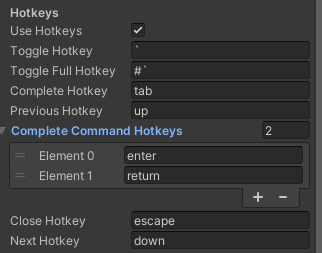
Keyboard hotkey bindings are now intelligent as they can be about shift key interaction. There are three ways to create a shift+<binding>:
- Prefix the binding with the
#symbol. For example,#tabwill be interpreted asshift+tab - For keys with shifted versions, such as alpha numeric keys, simply use the shifted version. For example,
Awill be interpreted asshift+a - When using the new input system, hotkeys can be represented as
shift+<binding>.shift+tabwill be interpreted as the combinationleft shift+tab.
The only combination keys that are supported without using custom bindings via the new Input System are shift+<binding>.
DxCommandTerminal is now fully integrated with Unity's new Input System, if it is found in the project and enabled.
You can also use PlayerInput or similar to bind InputActions to all available command terminal behavior. The available message are:
HandlePrevious: Selects the previously issued command form current command history location.HandleNext: Selects the next issued command from current command history location.Close: If the terminal is open, closes it.ToggleSmall: If the terminal is not opened to its small height, opens it to small height, otherwise closes it.ToggleFull: If the terminal is not opened to its full height, opens it to full height, otherwise closes it.CompleteCommand: Uses auto-complete to attempt to complete the current command using what is typed in the command buffer, cycling forwards through results.ReverseCompleteCommand: Uses auto-complete to attempt to complete the current command using what is typed in the command buffer, but cycling backwards through results.EnterCommand: Takes the current buffer and attempts to execute it as a command + parameters.
If using PlayerInput to bind to the above controls, you will need to uncheck Use Hotkeys under the Hotkeys header in the Terminal script.
When InputActions are not bound, there is an order of precedence for input checking. It is:
- Close
- Enter Command
- Previous
- Next
- Toggle Full Terminal
- Toggle Small Terminal
- Auto Complete (backward)
- Auto Complete (forward)
This order is irrelevant when using PlayerInput.
The shipped source generator emits [Preserve] onto every generated command catalog - on the catalog type and on its Collect entry method - and the catalog binds accessible command methods through direct delegate creation. The linker keeps the rooted Collect entry and everything reachable from it, so commands registered with RegisterCommandAttribute keep working through managed code stripping (IL2CPP/WebGL players) at every Managed Stripping Level.
At Medium or higher, commands reached only through reflection can still be stripped: handlers in private, non-partial types, and commands in precompiled DLLs without a generated catalog. Keep those available with [Preserve] on the methods, a link.xml entry for the assembly, or manual registration through Terminal.Shell.AddCommand.
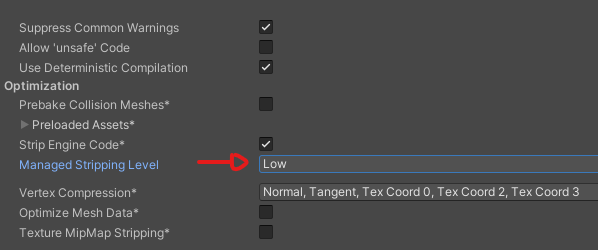
See Unity docs on Managed Stripping Level for more details.
AutoComplete has gotten a major upgrade in this fork. Completion is now not only case-insensitive, but it will now also search (unique) commands that have been executed, ignoring any irrelevant input. Pressing the complete key multiple times now selects available options in a persistent fashion. Completion can be walked both forward and backwards. Results are now presented in a new UI that intelligently adapts to screen space and current selection position. When completion is no longer relevant, the UI is disabled. However, you can opt to always show the available commands by toggling the new Display Hints option in the Terminal configuration. There are also several new theming options for hints, with controls over the currently selected hint v unselected hints.
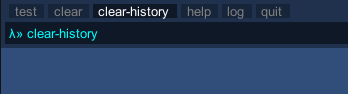
Note: Currently, if Make Hints Clickable is checked, there is a minor bug where, occasionally, for ~1 frame after auto-completing or deleting a character from a completed word, the text is selected and then unselected. I think it's something to do with the Layout v Repaint events, but I've tried a lot of solutions and none of them worked. Marking this as "won't fix" for now. Open to PRs!