




🍭 What Notifications Look Like
📪 Configure Notifications (Email / Telegram Bot / WeCom / ServerChan / Bark / Pushplus)
🐳 Docker Deployment (recommended, and usually the simplest option)
📦 Koyeb Deployment (a good fit if you do not have your own server)
🧪 Mogenius Deployment (no longer viable)
☁ Cloud Function Deployment (no longer actively supported)
- Community members created a Telegram group called
Freenom Renewal Bureaufor discussion, testing, and feedback. You can join directly here: https://t.me/freenom_auto_renew
Freenom is the only provider I know of that offers free top-level domains, but those domains have to be renewed every year, and only one year at a time. I had a pile of domains registered at different times, and renewing them manually got old fast, so I wrote this script to automate the whole thing.
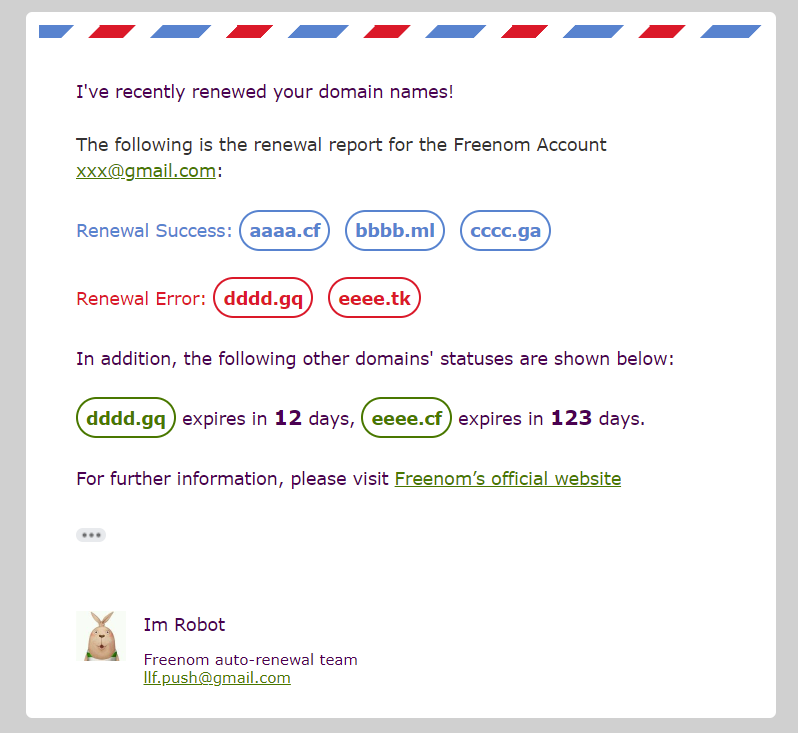
The script sends a notification whether renewal succeeds, fails, or crashes. Renewal-related notifications also include details like how many days remain before an unrenewed domain expires. The screenshot below shows the email version of that message.
- A VPS or server. Any box will do, although
Debianis the easiest path. If you deploy without Docker, you needPHP 8.1or newer. If you do not have a server, the hosted options later in this README may be a better fit. - A sender mailbox, if you want email notifications. The script knows how to auto-configure
Gmail,QQ Mail,163 Mail, andOutlook. If you want to use another provider or your own mail server, check the email-related comments in.env.example. - A recipient mailbox, if you want to receive email notifications.
- Both mailbox fields are optional because the project also supports
Telegram Bot,WeCom,ServerChan,Bark, andPushplus. You only needMAIL_USERNAME,MAIL_PASSWORD, andTOif you choose email notifications. - A little patience.
This project supports Email, Telegram Bot, WeCom, ServerChan, Bark, and Pushplus. Pick one and configure only that path. If you are on iOS, Bark is usually the cleanest option. For most other users, use whichever channel you are already comfortable with. I generally do not recommend ServerChan: the daily message cap is restrictive, and some content is hidden behind its paid tier. The same basic setup effort usually goes further with WeCom, and those notifications show up directly in the standard WeChat client.
Jump straight to a section:
This section covers Gmail, QQ Mail, and 163 Mail. Only read the provider you actually use. QQ Mail and 163 Mail both use your mailbox plus an authorization code. Gmail now effectively means your mailbox plus an app password.
(Click to expand or collapse each provider.)
Gmail
If you use multiple Gmail accounts, open the settings page in a private or incognito window first. That makes it much easier to land on the right account.
- In
Settings > Forwarding and POP/IMAP, enable:
Enable POP for all mailEnable IMAP

Then save the change.
- Turn on 2-Step Verification.
Official guide: Turn on 2-Step Verification
- Create an app password for this script.
Official guide: Sign in with App Passwords
Gmail no longer supports "less secure app" logins. Use your account plus an app password.
QQ Mail
In Settings > Accounts > POP3/IMAP/SMTP/Exchange/CardDAV/CalDAV Service, enable POP3/SMTP Service.
QQ Mail will ask you to send an SMS to Tencent. After that, it will display an authorization code. Use your mailbox account plus that authorization code to sign in, and keep the code for your .env configuration.
163 Mail
In Settings > POP3/SMTP/IMAP, enable both POP3/SMTP Service and IMAP/SMTP Service, then save the change.
Next, open the Client Authorization Password section and generate an authorization code. The UI may look different from the screenshot in the Chinese README depending on whether you have already created one. Like QQ Mail, 163 Mail may also require an SMS step before it will issue the code.
If the recipient does not see messages from a 163 mailbox, check the spam folder first.
After that, set MAIL_USERNAME and MAIL_PASSWORD to your mailbox and password or token, set TO to the mailbox that should receive notifications, and set MAIL_ENABLE=1 in .env.
If you do not want email notifications at all, set MAIL_ENABLE=0 in the root .env file.
That is it for email notifications.
For the full Telegram Bot setup flow, see the wiki: Telegram Bot
For the full WeCom setup flow, see the wiki: WeCom
For the full ServerChan setup flow, see the wiki: ServerChan
For the full Bark setup flow, see the wiki: Bark
Pushplus is also supported. Set PUSHPLUS_KEY to your token in .env, then set PUSHPLUS_ENABLE=1 to turn it on. If Pushplus is the only channel you want to use, leave the other notification methods disabled.
That covers notifications. Next up are the supported deployment options. Docker is still the path I recommend for most people because it removes nearly all environment drift.
Note: this path is currently marked beta and only supports amd64. If you are on arm or another architecture, wait for a later update. If you need a server, one option is cheap US VPS.
Debian / Ubuntu (recommended)
apt-get update -y;
apt-get install -y wget vim git make;
wget -qO- get.docker.com | bash;
systemctl start docker;
sudo systemctl enable docker.service;
sudo systemctl enable containerd.service;
docker version;
DOCKER_COMPOSE_VER=2.24.3;
DOCKER_CONFIG=/usr/local/lib/docker;
mkdir -p $DOCKER_CONFIG/cli-plugins;
curl -SL https://github.com/docker/compose/releases/download/v${DOCKER_COMPOSE_VER}/docker-compose-linux-x86_64 -o $DOCKER_CONFIG/cli-plugins/docker-compose;
sudo chmod +x /usr/local/lib/docker/cli-plugins/docker-compose;
docker compose version;
CentOS
yum update -y;
yum install -y wget vim make;
wget -qO- get.docker.com | bash;
systemctl start docker;
sudo systemctl enable docker.service;
sudo systemctl enable containerd.service;
docker version;
DOCKER_COMPOSE_VER=2.24.3;
DOCKER_CONFIG=/usr/local/lib/docker;
mkdir -p $DOCKER_CONFIG/cli-plugins;
curl -SL https://github.com/docker/compose/releases/download/v${DOCKER_COMPOSE_VER}/docker-compose-linux-x86_64 -o $DOCKER_CONFIG/cli-plugins/docker-compose;
sudo chmod +x /usr/local/lib/docker/cli-plugins/docker-compose;
docker compose version;git clone https://github.com/luolongfei/freenom.git && cd freenom- Open https://wit.ai.
- Sign in with Facebook or create an account with email only.
- Go to https://wit.ai/apps and create a new app.
- Choose
Englishas the language, pick any name you want, set the app toPrivate, and create it. - Open
Management > Settings(https://wit.ai/apps/<App ID>/settings). - Copy the
Client Access Tokenand put it in.envasWIT_AI_KEY='your Client Access Token'.
Replace the sample values in .env with your own configuration. If you are upgrading from an older release, you can also copy your previous .env into the new project root and let the script update it for you. Field-by-field explanations live in .env.example.
cp .env.example .env;
vim .env;
When you are done, save and quit.
Run these commands from the directory that contains docker-compose.yml.
make upThat is the whole startup flow. Use make logs if you want to tail the live logs.
Start the stack or update to the latest version
make upStop the stack
make downView live logs
make logsClean up disk space used by containers
make clearRestart the containers
make restartThat is the end of the Docker Compose section.
If you have your own server, this is the deployment mode I recommend most.
Docker Hub: https://hub.docker.com/r/luolongfei/freenom
The image supports linux/amd64, linux/arm64, linux/ppc64le, linux/s390x, linux/386, linux/arm/v7, and linux/arm/v6, so it should work on most VPS platforms as well as NAS devices and Raspberry Pi-class hardware.
Update packages and install the basic tools first. Pick the command that matches your OS.
Debian / Ubuntu
apt-get update && apt-get install -y wget vim makeCentOS
yum update && yum install -y wget vim makeThen install Docker:
wget -qO- get.docker.com | bashNotes:
- Use a KVM-based VPS. OpenVZ does not support Docker installation.
- CentOS 8 is not supported by this installer script.
- For anything more advanced, use the official Docker installation guide.
Start the Docker service
systemctl start dockerCheck Docker status
systemctl status dockerEnable Docker at boot
systemctl enable dockerBasic command:
docker run -d --name freenom --restart always -v $(pwd):/conf -v $(pwd)/logs:/app/logs luolongfei/freenomIf you want to set a custom run time:
docker run -d --name freenom --restart always -v $(pwd):/conf -v $(pwd)/logs:/app/logs -e RUN_AT="11:24" luolongfei/freenomThat command is identical except for -e RUN_AT="11:24", which tells the container to run the renewal task every day at 11:24 China Standard Time (Beijing time). RUN_AT also accepts cron-style expressions. For example, -e RUN_AT="9 11 * * *" means 11:09 China Standard Time every day. If you want to run less often than daily, change the cron expression accordingly.
I do not recommend setting a custom schedule unless you have a real reason to do it. If a large number of users all pick the same timestamp, everyone ends up hitting Freenom at once and service quality gets worse for everybody. If you leave RUN_AT unset, the container automatically chooses a random time between 06:00 and 23:00 China Standard Time, and it re-rolls that time on each restart.
Click to see what the Docker flags mean
| Flag | Meaning |
|---|---|
docker run |
Starts a new container |
-d |
Runs the container in the background and prints the container ID |
--name |
Gives the container a stable name so you can start, stop, and remove it later |
--restart |
Sets the restart policy; always means Docker starts the container again when the Docker service comes back |
-v |
Mounts a volume. The path after the colon is the container path, and the path before the colon is the host path. Only absolute host paths are supported. $(pwd) means the current directory. On Windows, use ${PWD} instead. |
-e |
Sets an environment variable inside the container |
luolongfei/freenom |
The full image name pulled from Docker Hub |
After the container starts, run ls -a in the current directory and you should see a .env file plus a logs directory. logs stores runtime logs, and .env is the configuration file. Edit .env, replace the sample values with your own, save it, and restart the container. If the config is valid, you should start receiving notifications quickly.
Click to see what some `.env` variables mean
| Variable | Meaning | Default | Required | Notes |
|---|---|---|---|---|
FREENOM_USERNAME |
Freenom account email | - | Yes | Only email-based Freenom logins are supported. If you currently sign in through a third-party social account, bind an email inside the Freenom dashboard first. |
FREENOM_PASSWORD |
Freenom password | - | Yes | Some special characters may need escaping. See the comments in .env. |
MULTIPLE_ACCOUNTS |
Multiple-account support | - | No | Format must be <account1>@<password1>|<account2>@<password2>|<account3>@<password3>. Do not remove the angle brackets. If this is set, FREENOM_USERNAME and FREENOM_PASSWORD become optional. |
MAIL_USERNAME |
Sender mailbox account | - | No | Supports Gmail, QQ Mail, 163 Mail, and Outlook. |
MAIL_PASSWORD |
Sender mailbox password | - | No | Use a Gmail app password, or the authorization code from QQ Mail / 163 Mail. |
TO |
Recipient mailbox | - | No | The mailbox that receives the notification emails sent by the script. |
MAIL_ENABLE |
Enable email notifications | 0 |
No | 1 enables email notifications. 0 disables them. If enabled, MAIL_USERNAME, MAIL_PASSWORD, and TO all become required. |
TELEGRAM_CHAT_ID |
Your chat_id |
- | No | Send /start to @userinfobot to retrieve it. |
TELEGRAM_BOT_TOKEN |
Your Telegram bot token | - | No | |
TELEGRAM_BOT_ENABLE |
Enable Telegram Bot notifications | 0 |
No | 1 enables Telegram notifications. If enabled, TELEGRAM_CHAT_ID and TELEGRAM_BOT_TOKEN are required. |
NOTICE_FREQ |
Notification frequency | 1 |
No | 0 only when a renewal operation happens. 1 on every run. |
NEZHA_SERVER |
Nezha probe server IP or domain | - | No | |
NEZHA_PORT |
Nezha probe server port | - | No | |
NEZHA_KEY |
Nezha client key | - | No | |
NEZHA_TLS |
Enable SSL/TLS for Nezha | - | No | 1 enables TLS. 0 disables it. |
For the full set of variables, see the comments in .env.example.
How do I know whether my config is correct?
After you save
.env, rundocker restart freenom, wait about five seconds, then rundocker logs freenom. If the output includes a success message, your configuration is in good shape. If you have not configured email yet, disable mail delivery first.
How do I upgrade to the latest version or redeploy from scratch?
From the directory that contains
.env, delete the existing container withdocker rm -f freenom, remove the old image withdocker rmi -f luolongfei/freenom, and run thedocker runcommand again. That redeploys the latest image. If the new release changes.env, the program will update the file and migrate your existing settings automatically.
One-line upgrade command:
docker rm -f freenom && docker rmi -f luolongfei/freenom && docker run -d --name freenom --restart always -v $(pwd):/conf -v $(pwd)/logs:/app/logs luolongfei/freenomShow container status and size
docker ps -asShow container logs
docker logs freenomRestart the container
docker restart freenomStop the container
docker stop freenomRemove the container
docker rm -f freenomShow container CPU and memory usage
docker stats --no-streamShow Docker version details
docker versionRestart Docker itself (not just the container)
systemctl restart dockerThat wraps up the container deployment section.
Heroku ended its free tier on November 28, 2022, so this route is effectively dead. Official announcement: https://blog.heroku.com/next-chapter
If you still want the historical deployment guide, it lives in the wiki: Deploy via Heroku
Railway's pricing changes often. Whether it is a good long-running deployment target depends on the plan you are on and the current billing rules, so check the official docs before you deploy: Railway pricing, Railway plans.
The step-by-step Railway guide is in the wiki: Deploy via Railway
If you do not have your own server, Koyeb can still be a reasonable option. Free allowances and whether a card is required can change with Koyeb's plan policy, so check the current pricing before you deploy: Koyeb pricing.
The step-by-step Koyeb guide is in the wiki: Deploy via Koyeb
After you read that guide and you are comfortable with the setup, you can try the one-click deploy link here:
Mogenius removed its free plan, so this option is no longer usable. Background: discussion #208
All cloud-function targets use the same ZIP package, which was prepared for cross-platform compatibility: https://github.com/luolongfei/freenom/releases/download/v0.5.1/freenom_scf.zip
Cloud-function deployment is no longer actively maintained, so this historical package remains the reference artifact for this path.
After downloading it, place the ZIP anywhere convenient on your machine. The deployment flow for each provider uploads that ZIP directly.
This deployment style is no longer actively supported because the major platforms have moved to paid pricing, but the old wiki pages are still here if you need them:
- Deploy via Tencent Cloud Functions
- Deploy via Alibaba Cloud Functions
- Deploy via Huawei Cloud Functions
The source-based deployment guide lives in the wiki: Deploy from Source
If you run into a bug, please open an issue and follow the template so the problem is easy to reproduce. If Freenom changes its algorithm and breaks the project, open an issue and let me know. I maintain this repository for the long haul, and stars are always appreciated.
Huge thanks to these supporters for backing the project.
If this project saves you time, consider supporting it. Support makes it much easier to keep maintaining and improving the codebase.

PayPal: https://www.paypal.me/mybsdc
Every time you spend money, you're casting a vote for the kind of world you want. -- Anna Lappe

If you leave a message with your donation, it will be shown on the Donation List.
Every star and every donation helps keep this project alive. Thank you to everyone who has supported it. Recommending the project to other people helps too. The more people use it, the easier it is to justify spending time on updates.
Believe in the future. Stay rational.
Taking things seriously is how we participate in society, and how we change it. -- Li Zhi
- Main program and framework: @luolongfei
- English documentation: @肖阿姨
- Add an interactive installer so users do not have to edit config files by hand
- Support automatic upgrades
- Merge multi-account renewal results into a single notification
- https://github.com/PencilNavigator/Freenom-Workers (JavaScript)
- https://github.com/Oreomeow/freenom-py (Python)
(If you have another implementation in a different language, feel free to open a PR and add it to this list.)
- This project depends on third-party libraries such as PHPMailer and guzzle.
- Some of the Docker-related documentation was informed by this article.
- @anjumrafidofficial improved the English mail content.