Home
- Open Rhino
- launch the Package Manager via "_Packagemanager" command inside the Rhino commandline.
- Search for "Daxs", install the plugin
- Restart Rhino once the installation is complete.
Alternative:
- Download it via food4rhino
- First, make sure your gamepad is already connected to your PC. You can check this in your Bluetooth & devices settings in Windows if you are using a wireless controller.
- After starting Rhino, turn on your gamepad.
- That should be enough to get control of the currently selected viewport.
In some cases, especially right after Rhino starts, you may need to click once into the viewport with your mouse before controller navigation becomes active.
After that, it should work normally.
And that is it.
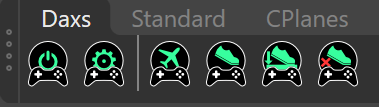
 Start/Stop Daxs Runtime
Starts or stops the Daxs Runtime. The default is, that Daxs is running automatically after a Rhino Instance started.
You can turn this off inside the Daxs Settings -> Settings -> General -> [ ] Autostart
 Daxs Settings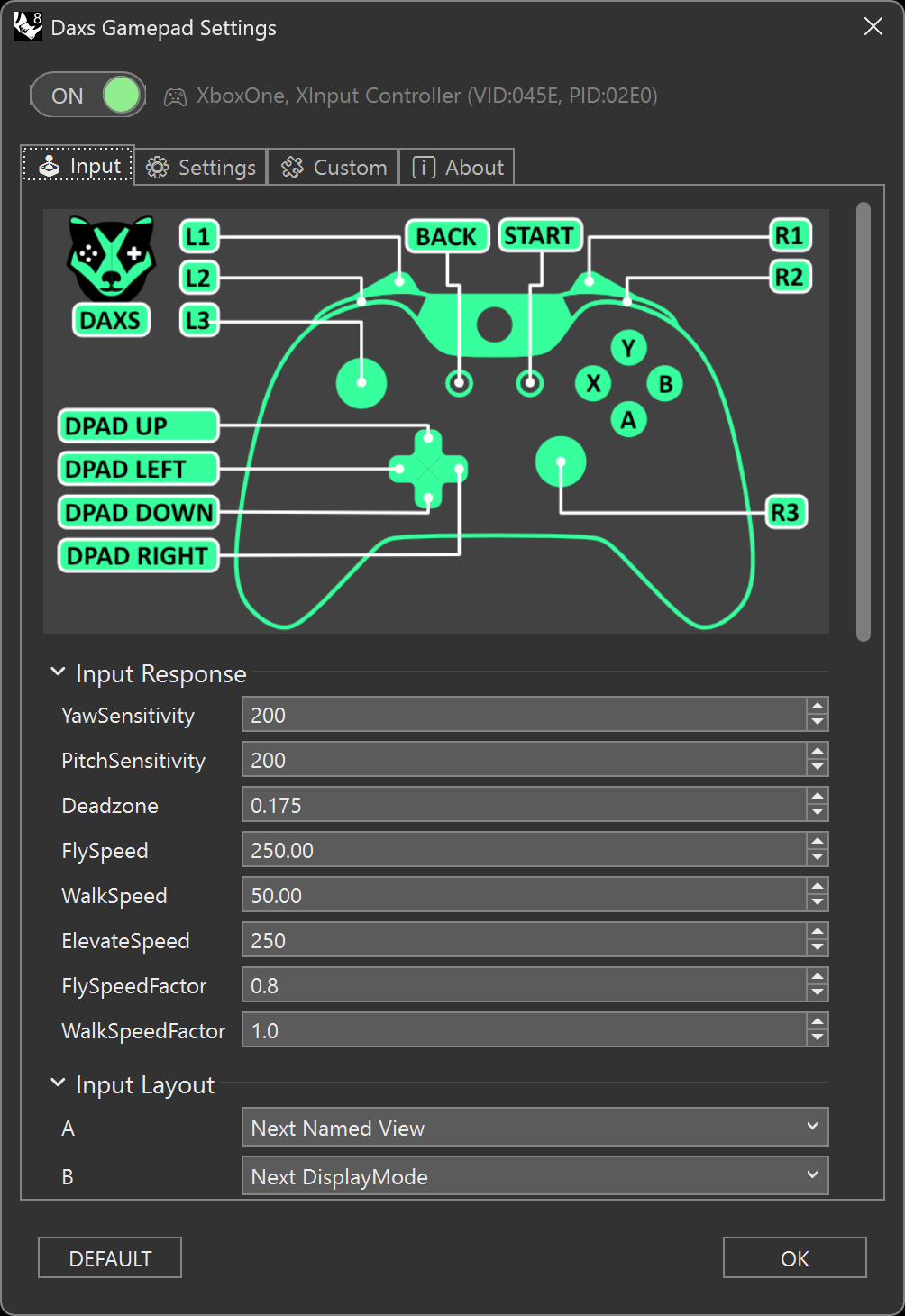
Global Settings for the Daxs Plugin.
| Name | Description |
|---|---|
| YawSensitivity | |
| PitchSensitivity | |
| InvertY-axis | |
| Deadzone | |
| FlySpeed | |
| WalkSpeed | |
| ElevateSpeed | |
| FlySpeedFactor | |
| WalkSpeedFactor |
comming soon...
comming soon...
About the Autor and Licence of the Daxs plugin
 Daxs Fly Mode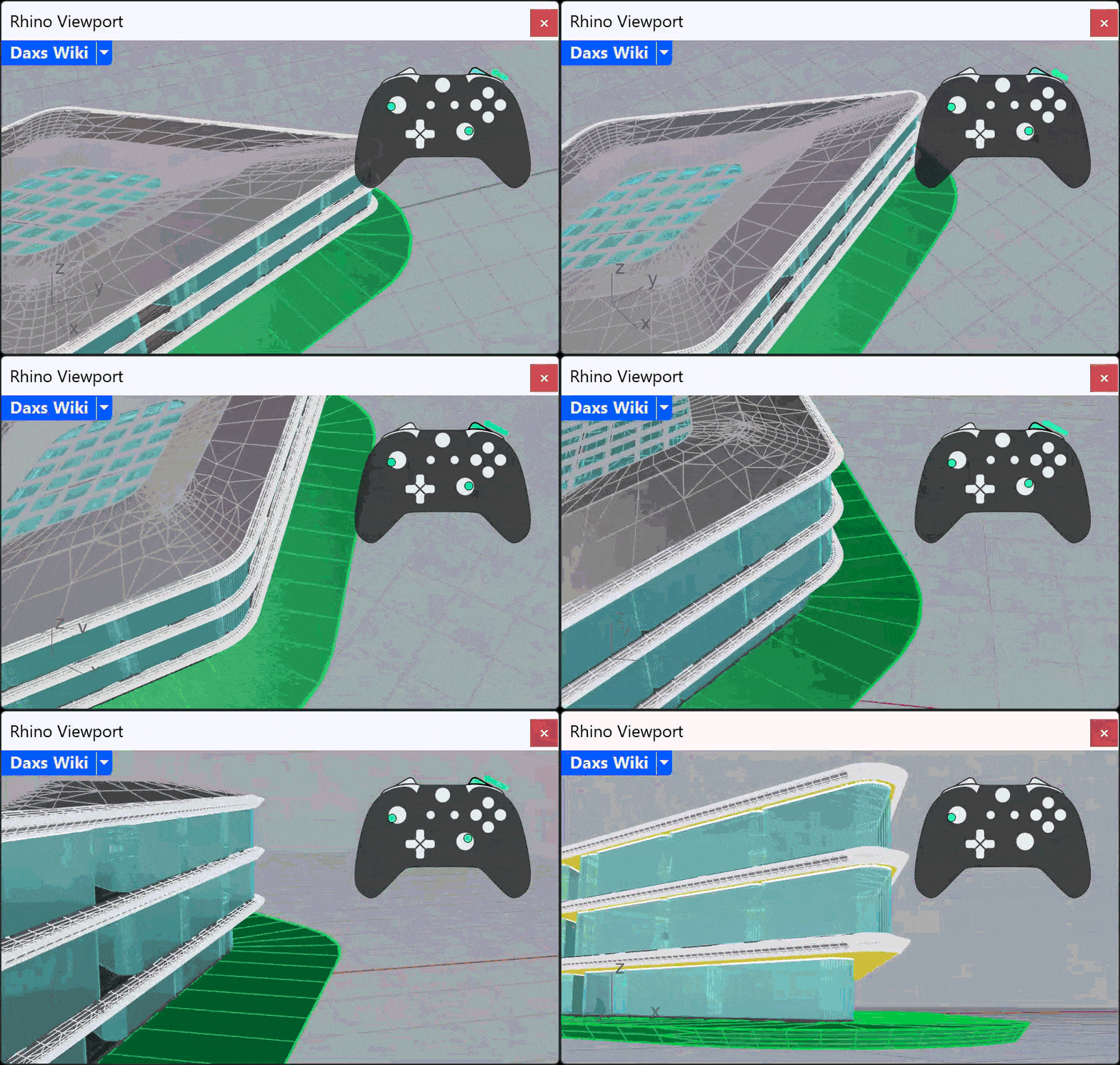
Fly through your model
 Daxs Walk Mode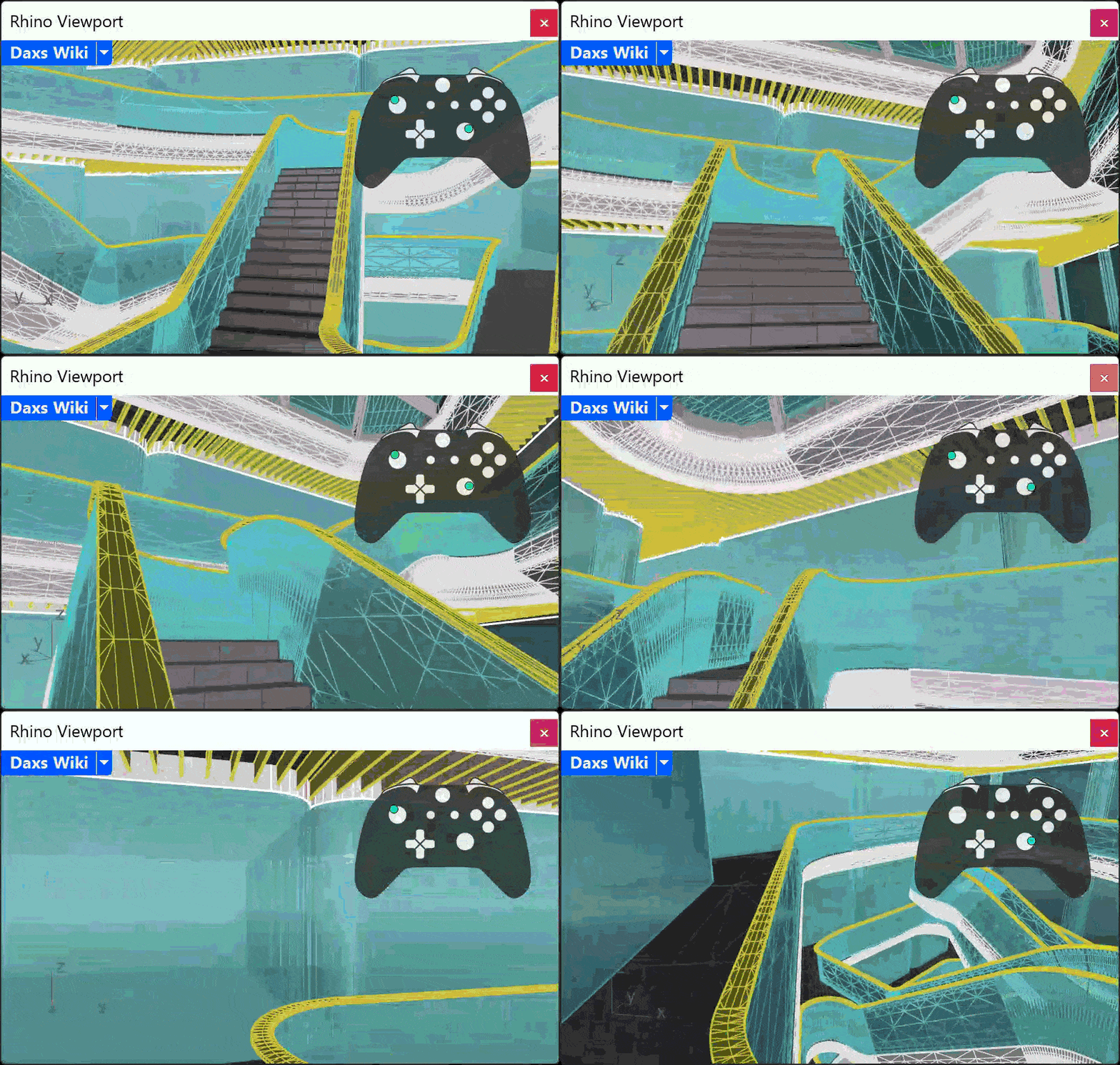
Walk through your model, or a plane - depending if a navigation mesh is selected. (first-person view)
 Daxs SetNavigationMesh
Set a Navigation Mesh for the Walk Mode. CAUTION Pick a mesh with a low vertice count - A Rule of thumb is less then 10.000 vertices. Once picked, a reference guid is saved inside the Rhino file.
Please note that Rhino, while moving the viewport, reduces the render quality in render mode. Daxs **can not do that (right now). So your GPU need to work more.
Minimum requirements to run Daxs smoothly in render mode should be around a GeForce 2060 - depending of course the complexity of the model, the choice of render materials and your screen/viewport resolution.
Please try to minimize the size of the navigation mesh as much as possible. As a rule of thumb it should have under 10000 vertices. Think about that the plugin does multiple times each second a mesh-ray intersection.