



Comfy File Sorter is a powerful, fast, and beautiful local gallery manager for your generations (Stable Diffusion / ComfyUI). It is designed for convenient viewing, sorting, and managing thousands of images and videos.
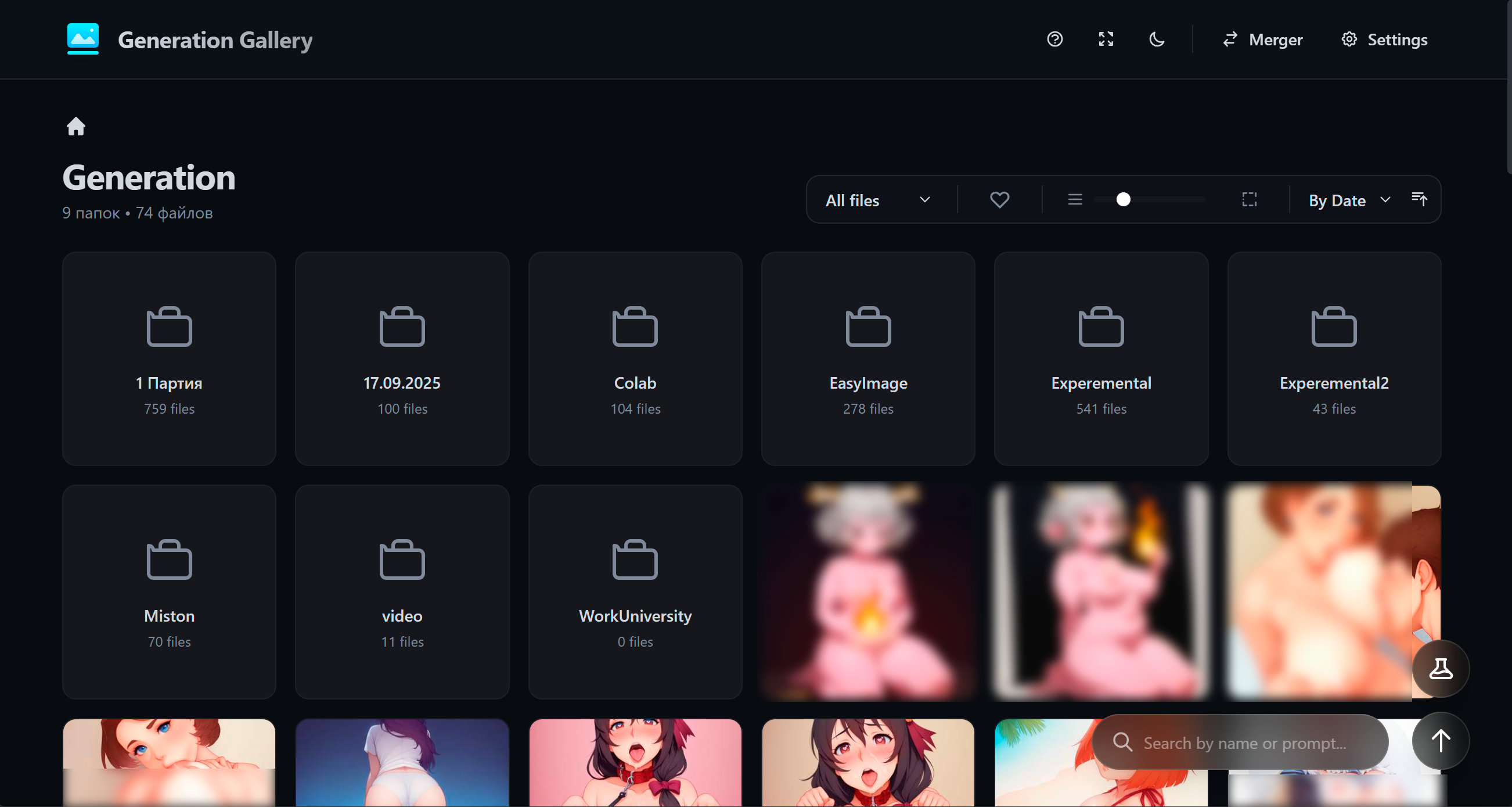
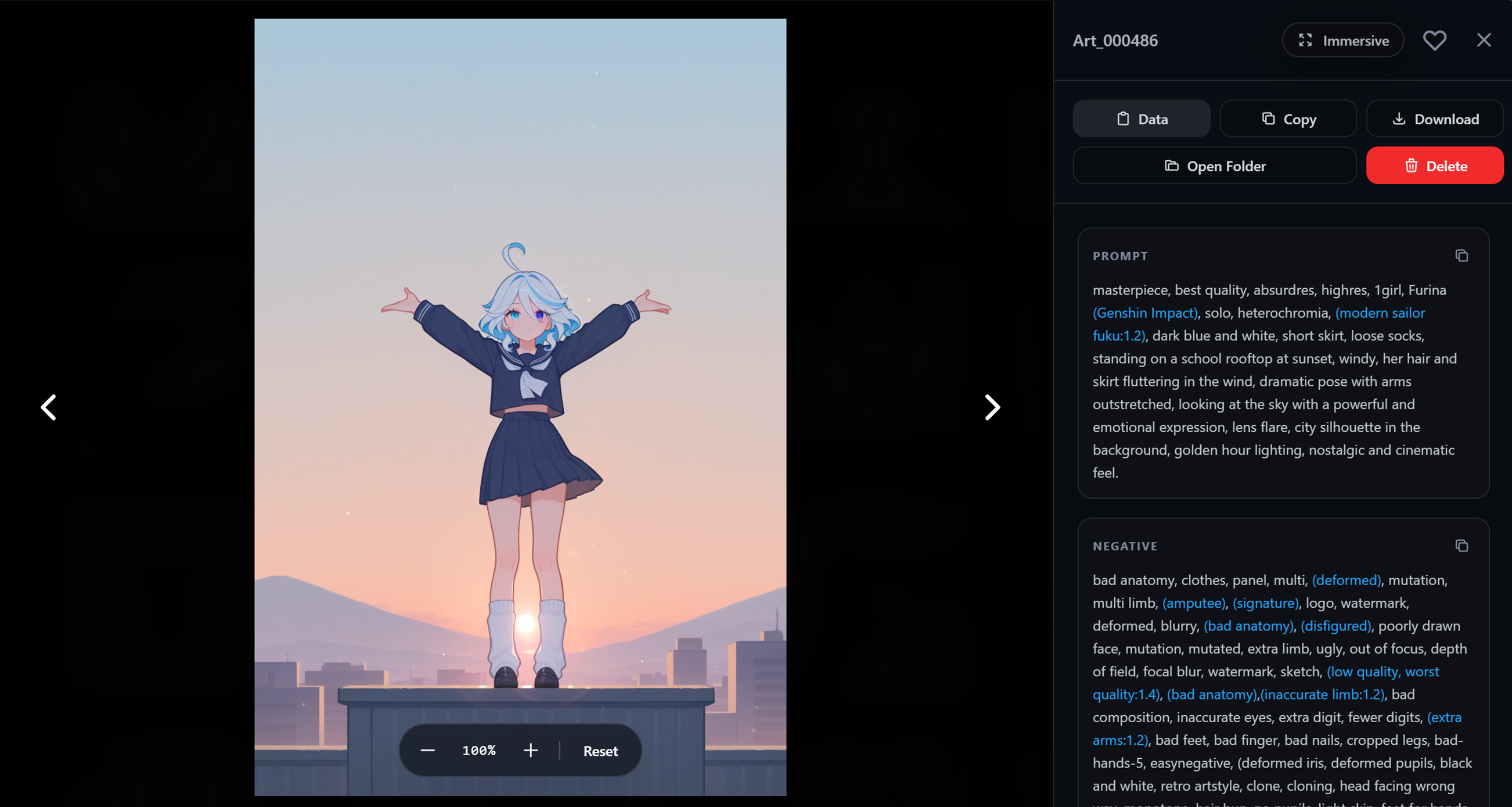
| Gallery Interface | View Mode |
|---|---|
 |
 |
- ⚡ Lightning-Fast Gallery: Display thousands of files without lag. Supports both images and videos.
- 🔍 Smart Search: Instantly search not only by filenames but also by prompts (positive/negative), models, and seeds!
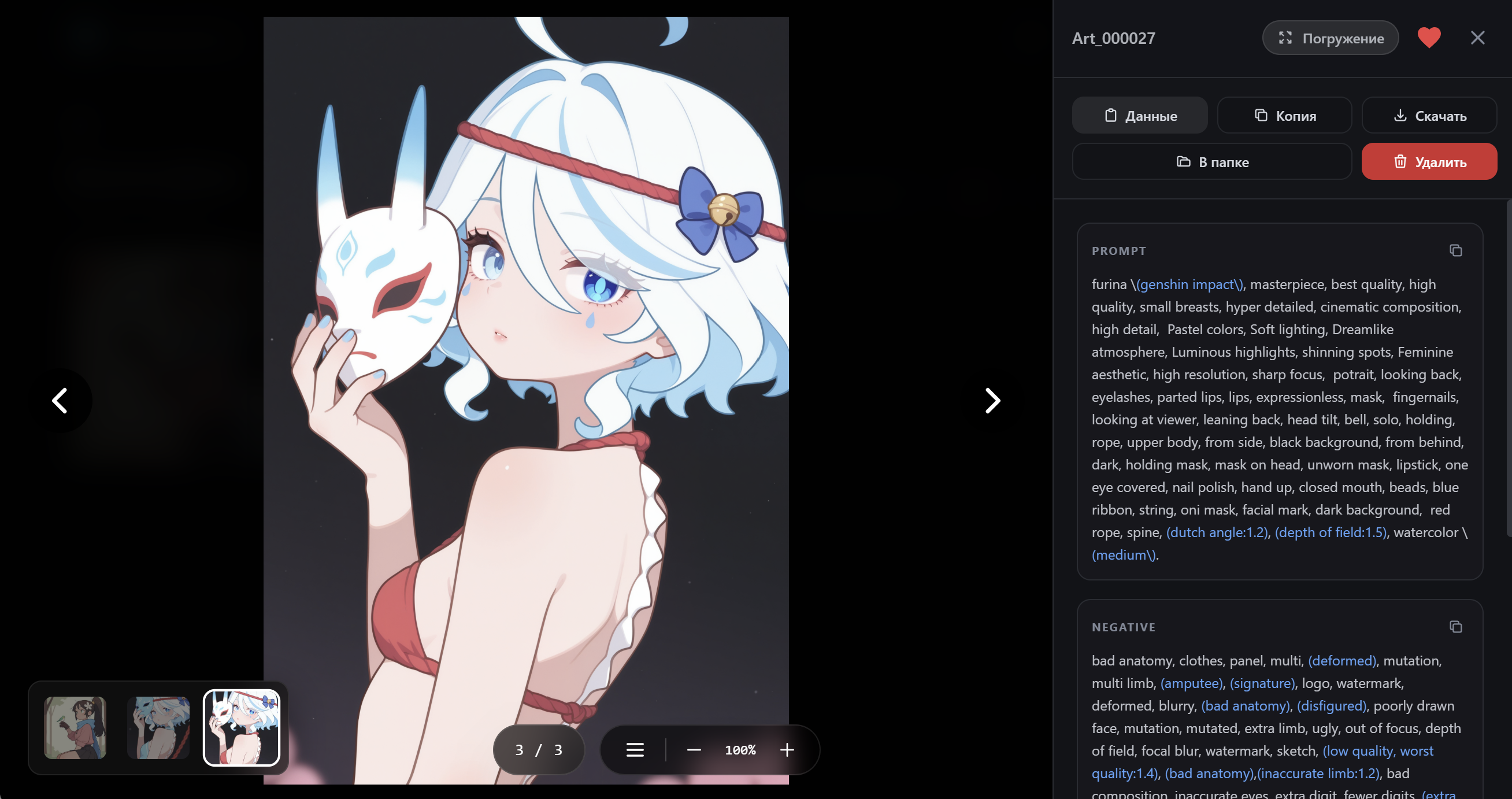
- 📄 Metadata Reading: Full support for ComfyUI Workflows and standard PNG Info.
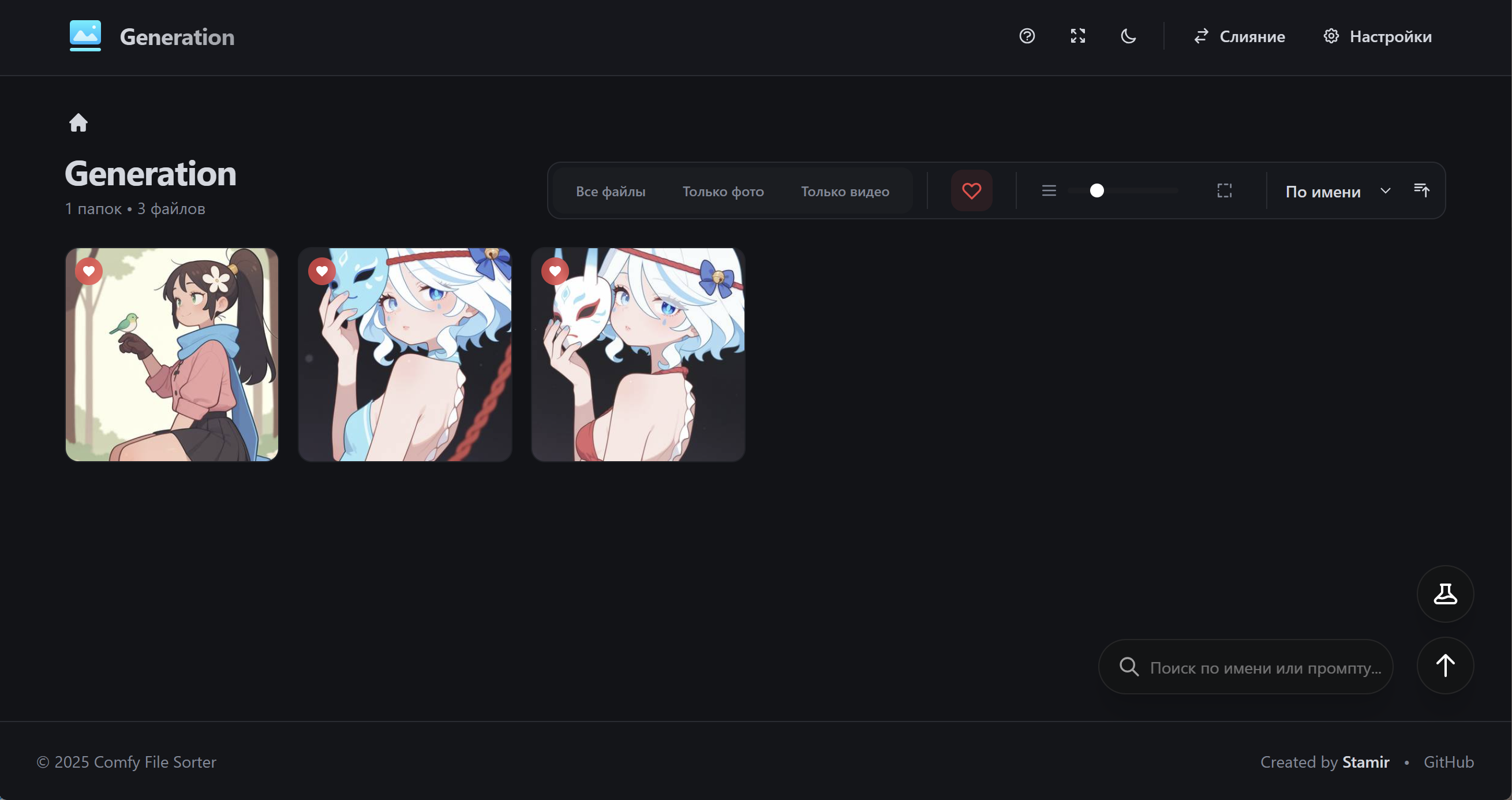
- ❤️ Favorites: Mark your best generations and filter them with a single click.
- 🎭 Immersive Mode: Full-screen image viewing with slideshow capability.
- 📂 File Operations:
- Quick copy to the "Selected" folder.
- Delete (to Recycle Bin or permanently).
- Open file location in Explorer.
- 📦 File Merger: A built-in utility to collect files from multiple folders into one with smart sequential renaming. ☁️ Cloud Sync (NEW!): Automatically send generations from cloud notebooks (Google Colab, Modal) directly to your local computer via a secure tunnel. No more lost files when your cloud instance crashes!
- 📥 Smart Download Manager (NEW!): Download files with a beautiful in-app progress bar (MEGA-style), without spamming browser popup windows.
- 📱 Remote Access (Tunnels): Built-in support for Ngrok and
localhost.run. Start a tunnel with one click in the settings and get a QR code for easy mobile access. - 🎨 Theming & Localization: Light/Dark theme. Supports English and Russian languages.
Convenient filtering of your best shots
Full-screen mode with metadata
The application is completely portable.
- Simply download the latest release.
- Run the
run.batfile.
Requires Python 3.10+.
-
Clone the repository:
git clone https://github.com/Stamir36/ComfyFileSorter.git cd ComfyFileSorter -
Install dependencies:
pip install -r requirements.txt
-
Run the server:
python app.py
The browser will open automatically at http://127.0.0.1:7865.
Upon the first launch, the program will create the necessary folder structure. You can change the folder paths directly in the program interface ("Settings" button).
📂 ComfyFileSorter/
├── 📄 run.bat          # Launch file
├── 📂 output/          # Place images here (or specify your ComfyUI output path)
└── 📂 copies/          # Files are saved here when clicking the "Copy" button
You can change the folder paths directly in the program interface ("Settings" button).
| Key | Action |
|---|---|
← / → |
Previous / Next image |
F |
Toggle Immersive Mode |
Delete |
Delete current file |
Esc |
Close viewer |
If you are renting a GPU in the cloud, you can automatically send all new generations directly to ComfyFileSorter on your home PC!
- Open Settings in the ComfyFileSorter web interface.
- Go to the System tab, enable the tunnel (Ngrok is recommended), and set a Cloud Sync Token (your secret password).
- Restart
app.pyto establish the tunnel. - Copy your gallery link from the "Remote Access" menu (QR code icon).
- Add the following Python snippet to a new cell in your Jupyter Notebook (Colab/Modal), fill in your details, and run it alongside ComfyUI:
!pip install -q requests

import threading, time, os, requests
from pathlib import Path

# ================= SETTINGS =================
GALLERY_URL = "YOUR_APP_LINK_HERE"         # Example: [https://a1b2c3d4.ngrok-free.app](https://a1b2c3d4.ngrok-free.app)
UPLOAD_TOKEN = "YOUR_SECRET_TOKEN"         # Must match the token in app settings
OUTPUT_DIR = "/content/ComfyUI/output"     # Path to output folder in the cloud
# ============================================

def cloud_sync():
    print("🚀 [Cloud Sync] Started!")
    uploaded = set()
    while True:
        try:
            if os.path.exists(OUTPUT_DIR):
                base = Path(OUTPUT_DIR)
                for f in base.rglob("*.*"):
                    if f.is_file():
                        rel = str(f.relative_to(base)).replace("\\", "/")
                        if rel not in uploaded:
                            time.sleep(1) # Wait for the file to finish writing
                            with open(f, 'rb') as file:
                                resp = requests.post(
                                    f"{GALLERY_URL.rstrip('/')}/api/upload",
                                    headers={
                                        "Authorization": f"Bearer {UPLOAD_TOKEN}",
                                        "ngrok-skip-browser-warning": "true"
                                    },
                                    data={"rel_path": rel}, files={"file": file}, timeout=60
                                )
                            if resp.status_code == 200:
                                uploaded.add(rel)
                                print(f"[Cloud Sync] ✅ Sent: {rel}")
        except Exception as e:
            pass
        time.sleep(5)

# Run sync in a background thread
threading.Thread(target=cloud_sync, daemon=True).start()
All new generated files will automatically appear in your local Uploads folder!
- Built with Flask and Tailwind CSS.
- Icons by Heroicons.
Author: Stamir Version: 1.0.1 License: MIT License
Link to my Civitai profile: Civitai